
WHAT IS PROCORE:
Procore is a Construction Management Solution that Welty has adopted. This Web Based Solution is used for Project Management, Construction Financials, Quality & Safety, and Field Productivity.
HOW TO GET SET UP:
The IT Department will set you up with an account and assign you to projects. Please let helpdesk@thinkwelty.com know what Project #'s you need assigned to and you will receive an email confirmation to begin setting up your Procore account.
HOW TO LOG IN (Computer/Mobile):
Once you receive an invitation to join procore after providing the proper information to helpdesk@thinkwelty.com, you can log in using the following:
Website: https://app.procore.com
Email: Welty Email Address
Password: Whatever you set the password up to be. (we suggest using your pc password)
Mobile Access: Open the app store, search Procore. Download the app and use the same credentials as above.
HOW TO VIEW PROJECTS:
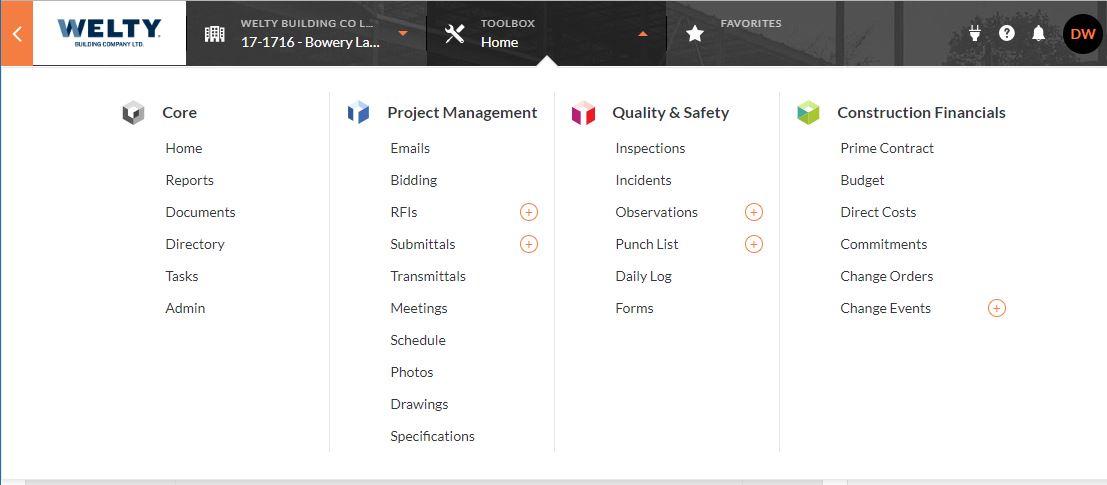
Once you register for Procore and log in, you will see all the projects you have access to listed. To go into the Project click on the name of the project. Then you can click the Toolbox tab to access the most frequently used features.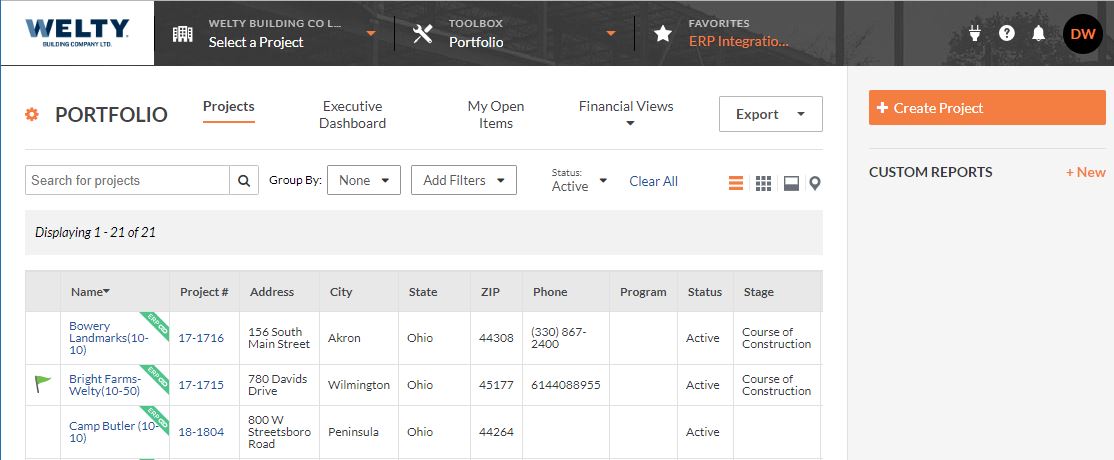
HOW TO ACCESS TRAINING:
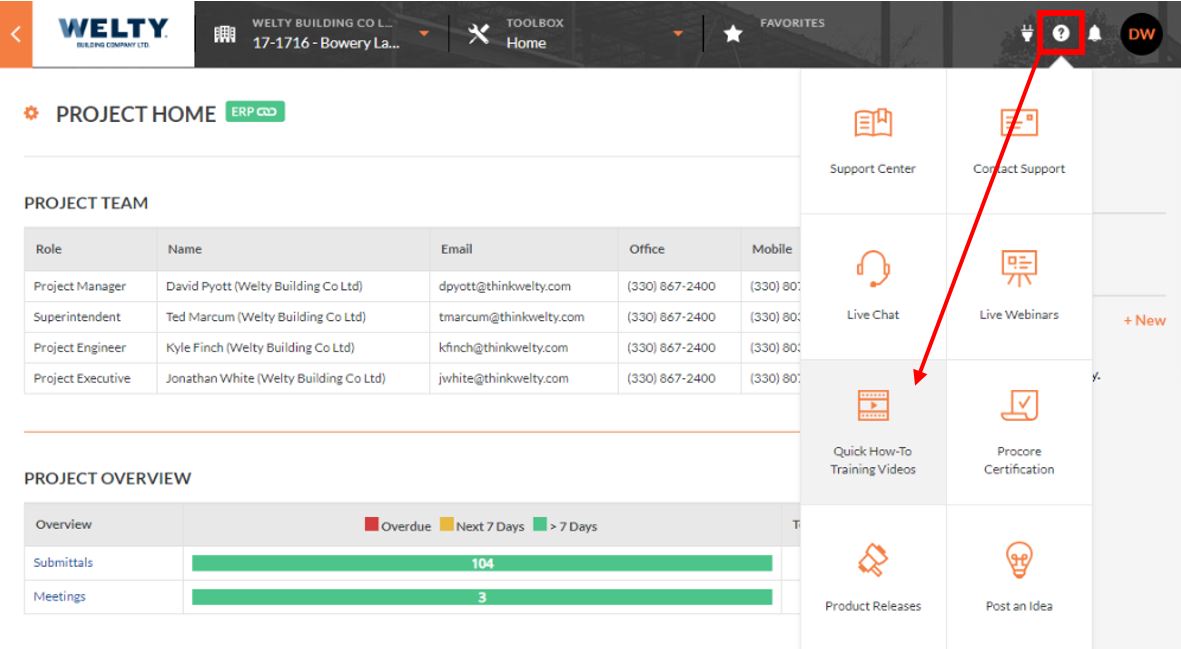
Once logged in, click the (?) icon on the top right and select Quick How-To Training Videos.
PROCORE SUPPORT:
Support is provided in the subscription Welty already pays for. You can access their live Chat/Phone support by clicking the (?) towards the top right section of the portal and Contact Support.
PROCORE DRIVE:
Procore Drive allows you to access all files in procore from your desktop,
instead of having to log into the website. If you do not have a procore
login please contact helpdesk@thinkwelty.com.
1. Download Procore Drive here: https://support.procore.com/products/procore-drive/setup-guide
2. Once download completes, run the installer.
3. A shortcut to Procore Drive will be added to your desktop.
4. Once Procore Drive opens, log in with your Welty Email and whatever password you use.
a. You can reset your password here: https://login.procore.com/passwords/new
5. Once logged in, towards the top left you will see the Procore Logo and Welty Building Co Ltd.
6. Click the dropdown on the right of Welty Building Co Ltd to select your project.
7. You can drag and drop files into folders. You cannot drag files/folders out of procore drive, you must select the folder and click download towards the top.

TOP TRAINING VIDEOS:
PROJECT ASSISTANTS:
Document Management
Create a commitment change order
Create Change Order
Create Prime Contract
Create Sub Contract
PROJECT ENGINEERS / SUPERINTENDENT:
Setup Project Directory and Permissions
Upload Drawings
Create Meeting Minutes
Upload Photos
Create an RFI
Upload Specifications
Auto Generate Submittal Log
Create Change Events
Create Custom Reports
Create a Submittal
Create Daily Log
Create Punch-List Items
Mark up Drawings
Create Instructions (Field Work Directives)
Comments
0 comments
Please sign in to leave a comment.