
Wireless Puck Instructions (Barco ClickShare):
FOR WELTY EMPLOYEES:
STEP 1: Turn the TV On.
- Use the TV remote located on the table to turn on the TV.
STEP 2: Connect the Wireless Barco Puck
- Plug the Wireless Barco Puck into a USB C port on your laptop.
STEP 3: Install the ClickShare Software
- Press the Puck Button on the Barco Puck to download the software.
- Wait for the Barco Window to pop up on your laptop, indicating the installation is complete.
- (This installation is only required once.)
STEP 4: Share your Screen
- Press the Puck Button to share your screen.
- Tips:
- Two users can share their screens simultaneously by pressing their respective Puck Buttons.
- Hold the Puck Button to take over all screens.
NON-WELTY EMPLOYEES:
STEP 1: Turn the TV On.
- Use the TV remote located on the table to turn on the TV.
STEP 2: Connect the Wireless Barco Puck
- Plug the Wireless Barco Puck into a USB C port on your laptop.
STEP 3: Run the ClickShare Software
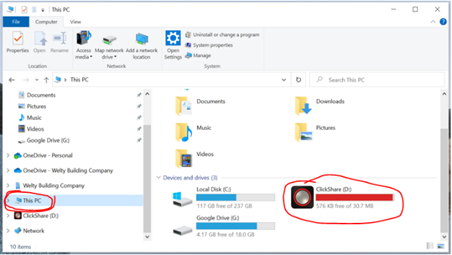
- Open File Explorer and navigate to This PC.
- Locate the ClickShare Drive and double-click on ClickShare_for_windows.exe to run the setup.
STEP 4: Share your Screen
- Press the Puck Button to share your screen.
- Tips:
- Two users can share their screens simultaneously by pressing their respective Puck Buttons.
- Hold the Puck Button to take over all screens.
Comments
0 comments
Please sign in to leave a comment.